 Chord Lens
Practise and play · 04 of 07
PRACTISE ON YOUR PHONE: INSTALL THE CHORD LENS CHORD APP. no app store needed
The short answer
Chord Lens has no App Store download: the Studio installs straight from your phone’s browser. On iPhone, open chordlens.app/studio in Safari, then tap Share › Add to Home Screen. On Android, open it in Chrome and tap Install app. It opens full screen, like any app, with the chords of each song in time.
01 / 08 · WHY
Your chords, where your instrument is.
Most practice doesn’t happen at a desk. It happens on the sofa with a guitar, at the piano with the phone propped on the music stand, or in a rehearsal room ten minutes before the band starts. A laptop is a clumsy thing to balance on a knee. A phone is already in your pocket.
The Chord Lens Studio runs in any modern browser, phones included. Installing it adds an icon to your Home Screen and opens the Studio full screen, with no browser address bar or tabs in the way. It behaves like an app because, to your phone, it is one. There is nothing to download from a store and nothing to keep updated by hand.
This guide covers putting it on an iPhone and an Android phone, what the phone version does well, and what is still a job for a computer, so you know which to reach for.
02 / 08 · METHOD
Install Chord Lens on your phone in five steps.
The Studio offers to install itself once you’ve opened a song on that phone, so the quickest way is to open a song first. If you’d rather do it straight away, go to chordlens.app/studio?install and the install steps show at once.
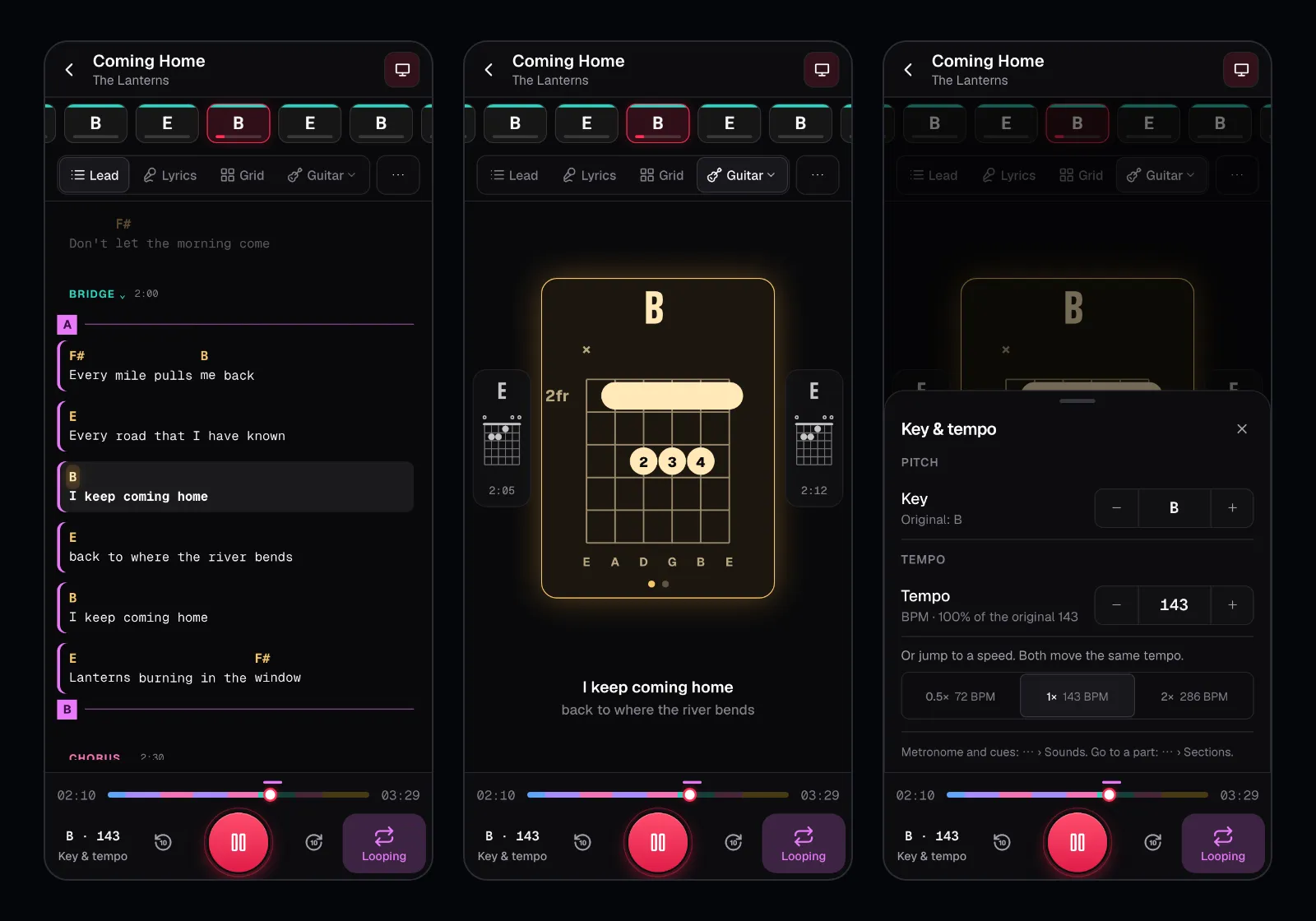
In the screenshot the demo song Coming Home is open on a phone, 390 pixels wide, with the video hidden. On the left the chord cards run across the top in time and the Lead view shows the chords over the words; in the middle the Instrument view draws the B chord on guitar; on the right the Key & tempo sheet is open.
Open the Studio
On iPhone, open chordlens.app/studio in Safari. On Android, open it in Chrome. Sign in with Google.
Open a song
Paste a YouTube link or pick a song you have already opened. Then go back to the Studio home.
iPhone: Share, then Add to Home Screen
The sheet Put Chord Lens on your Home Screen shows the two taps: Share in Safari’s toolbar, then Add to Home Screen.
Android: Install app
The sheet Install Chord Lens has an Install app button. Tap it and confirm in Chrome’s own dialog.
Open it from your Home Screen
Tap the Chord Lens icon. On iPhone you sign in once more inside the app; after that it remembers you.
03 / 08 · IF IT DOESN’T SHOW
No install sheet? Here’s why.
The sheet only shows on a phone, on the Studio home, and only once a song has been opened on that phone. If your account already has songs, that counts too. It never shows inside the installed app, and if you tap Not now it doesn’t ask again. Open chordlens.app/studio?install to bring it back.
On iPhone, use Safari. Other browsers on iPhone, and the in-app browsers inside social apps, don’t offer Add to Home Screen the same way, so the Studio doesn’t show the steps there. Copy the link into Safari and it works.
On Android, the Install app button appears when Chrome offers to install the site. If it doesn’t, Chrome’s own menu has an Install app or Add to Home screen item that does the same thing.
Add the Home Screen icon to your dock or first screen. The fewer taps between you and the chart, the more often you’ll practise.
04 / 08 · ON THE PHONE
What the phone version does.
Open any song and the chords run across the top as cards, the one playing now lit, in time with the music. Under them, one row switches the view: Lead shows the chords over the words, Lyrics the words alone, Grid the chords bar by bar, and Instrument the shape of the chord playing now, large, with the chords either side of it.
The Instrument view draws the chords for guitar, ukulele, mandolin, bass or piano, the same instruments as on a computer. Set a capo and the shapes follow it; the Studio can suggest a capo when one gives you easier open shapes. See how to transpose chords for what the capo is doing.
Key & tempo sits at the bottom left, showing the key and BPM. Open it to move the key up or down a semitone at a time, change the tempo, or jump to half, normal or double speed. Loop sits at the bottom right. The ⋯ button holds the rest: Sounds, with the metronome and spoken cues; Display, with the chord size, Simplify and Nashville numbers; Sections; Share; and Print or save as PDF.
The video can be full width, a compact square beside the chords, or hidden so the chart gets the whole screen. On a small phone, Hidden is often the best way to practise.
05 / 08 · ON A COMPUTER
What’s still a job for a computer.
Splitting a song into stems runs on your computer’s graphics card, in Chrome or Edge on a desktop or laptop. A phone can’t do it, and the Studio says so rather than trying. Chords, lyrics and sections still work on the phone; it’s the split, and with it soloing or muting one instrument, that needs the bigger machine.
The Chrome extension is the same story. It runs in Chrome on a computer, beside the YouTube video, and phone browsers don’t take extensions. On a phone, paste the YouTube link into the Studio instead.
So use each for what it does best: the computer for splitting and mixing stems, the phone for reading the chords, changing the key and looping a part with your instrument in your hands.
06 / 08 · UPDATES
Always up to date.
Updates arrive by themselves. When a new version of the Studio is out, the app shows a bar, New version of Chord Lens, with a Reload button, the next time you come back to it. Nothing reloads on its own, so a song is never stopped halfway through a practice run. Tap Reload when you’re ready.
If you prefer not to install anything, the Studio works the same in the phone’s browser; installing just saves the taps. For a fuller picture of practising with Chord Lens, read slowing down a song and practising with a metronome on the song.
07 / 08 · Do it in one click
AI YouTube to Chords
Paste a YouTube link, on your phone or your computer, and read its chords in time with the song.
01Is there a Chord Lens app for iPhone?
Yes, from Safari rather than the App Store. Open chordlens.app/studio, tap Share, then Add to Home Screen. It opens full screen like any app.
02Is there a Chord Lens app for Android?
Yes. Open chordlens.app/studio in Chrome and tap Install app, or use Install app in Chrome’s menu.
03Why don’t I see the install button?
It shows on a phone’s Studio home after you have opened a song there, and not again after Not now. Open chordlens.app/studio?install to see it at once.
04Can I split stems on my phone?
No. Splitting runs on a computer’s graphics card, in Chrome or Edge. Chords, lyrics and sections work on the phone.
05How do I update the app?
You don’t need to. When a new version is out, a bar offers Reload the next time you open the app, and nothing reloads mid-song.
06Can I change the key on my phone?
Yes. Tap Key & tempo at the bottom left and move the key a semitone at a time; the chords and the shapes follow.