 Chord Lens
Voice and karaoke · 02 of 04
HOW TO MAKE A KARAOKE VERSION OF ANY SONG. the singer out, the band in
The short answer
To make a karaoke version of a song, split the recording into stems and mute the voices. In the Chord Lens Studio, upload an MP3, WAV or M4A file, press Split stems, then press Karaoke: the lead and backing vocals go quiet, the band keeps playing, and the words light up in time.
01 / 08 · WHAT
The real band, without the singer.
A karaoke version is a song with the singing taken out, so you can sing the lead yourself over the band. For years that meant hoping someone had already made a track of your song, in a key you could sing, and usually with a re-recorded band that never quite sounded like the original.
You can now make one from the recording itself. The older trick was to cancel whatever sat in the middle of the stereo mix, which often took the bass and the kick drum away with the voice and left a hollow, phasey sound. Stem splitting works differently. A separation model listens to the song and pulls it apart into instruments, so the voice becomes one part you can turn off while drums, bass, guitar and keys keep playing as they were.
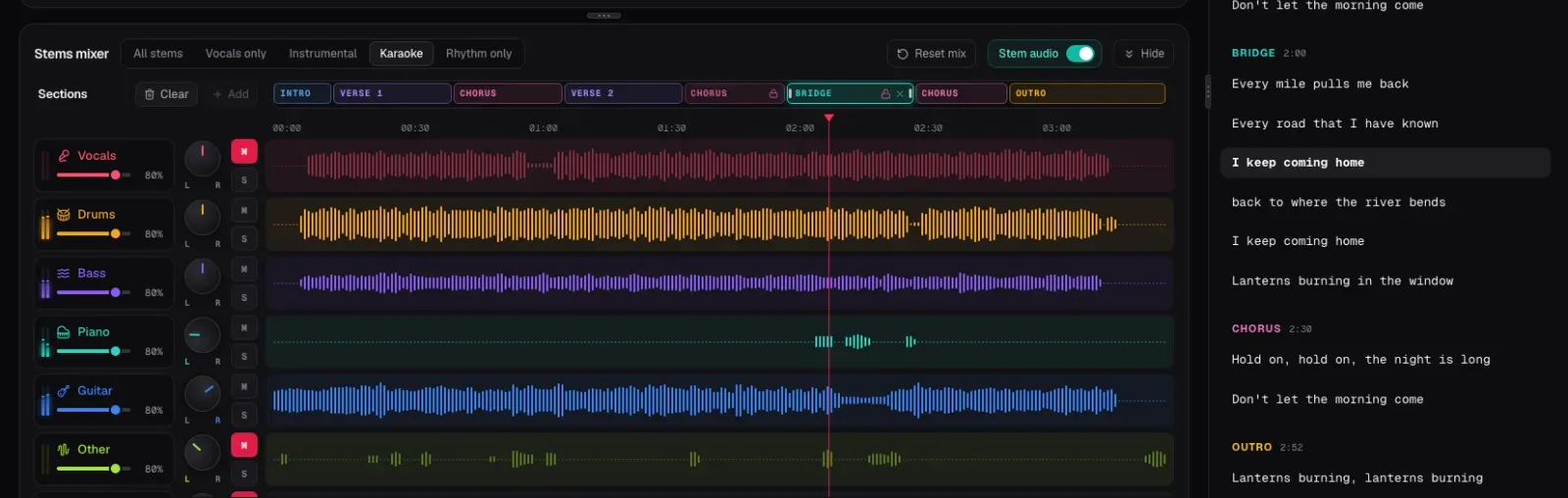
Chord Lens splits a song into six stems: vocals, drums, bass, piano, guitar and other. The other stem holds everything that isn’t one of the first five, and that is often where backing voices, harmonies and stray vocal lines end up. That detail matters for karaoke, and it is why the Karaoke mix mutes two stems rather than one.
Because it works from the song you open, it doesn’t matter whether a karaoke catalogue ever had it. A cover you found last night, a live take, or a song in a language the karaoke channels skipped turns into a backing track the same way as a hit.
02 / 08 · METHOD
Make a karaoke version in six steps.
This is the whole job in the Chord Lens Studio. It runs in the browser, so there is nothing to install, though the split itself needs a computer.
The chords and the words arrive first, because the server works them out quickly. The split comes second, because it runs on your own computer, and you can read the lyrics or set the key while it works. The first split also sets the splitting engine up, once. After that, a song you split stays split in the Studio, so the karaoke is ready next time you open it.
Open the Studio on a computer
Go to the Studio in Chrome or Edge and sign in with Google. Splitting needs a computer; a phone still shows the chords and the words.
Upload your file
Upload an MP3, WAV or M4A file of the version you want to sing.
Press Split stems
The song splits into six stems. On Free, place the 2-minute window over the part you want to sing.
Press Karaoke
In the stems mixer, press Karaoke. Vocals and Other are muted together, so the lead and most backing voices go quiet and the band plays on.
Set your key
If the chorus sits too high or low, step the Key control a semitone at a time. Every stem moves with it, at the same speed.
Sing with the words
Switch the chord sheet to Lyrics, or read the line under the live chords. The line being sung lights up as the song plays.
03 / 08 · THE MIX
Choose how much of the singer stays.
Karaoke is one of five one-press mixes above the faders. It mutes Vocals and Other together, which takes out the lead and the backing voices that tend to land in Other. Pick it when you want to sing over the band alone.
Instrumental mutes only Vocals and keeps Other. Choose it when the backing voices are part of the song you want to keep, for example a choir answering the lead, or when you are learning a harmony and want to sing under the backing parts. It is also the better pick when Other carries a synth or a string part that Karaoke would take away with the voices.
For learning a new song, try a guide vocal. Leave Vocals on and pull its fader down low instead of muting it. You hear a quiet version of the singer showing where the line goes, and your own voice sits on top. As the song settles, pull it further down until you don’t need it.
A mix only changes mute and solo, so your fader levels stay where you set them. Reset mix brings the whole song back. If you want only the voice instead, for checking a word or learning a harmony, Vocals only is the opposite of karaoke: see the YouTube Vocal Remover for that side of the same split.
Learning the song? Start with Vocals low, not off. Mute it fully once you can sing the verse without peeking.
04 / 08 · HOW CLEAN
A ghost of the voice can stay. Here’s what helps.
On most songs the voice comes away cleanly and the band stays whole. Some songs are harder. A vocal drenched in reverb or echo leaves a trace in the other stems. A voice doubled by a guitar or a synth line is hard to pull apart from that instrument. Old mono recordings, heavy distortion, and live takes with a crowd singing along split less cleanly too. On those you may hear a faint ghost of the singer.
When you are singing, a faint ghost rarely matters: your own voice covers it. It shows most in a quiet bridge or a sparse intro. A few things help. If you used Instrumental, switch to Karaoke so Other goes too, since that is where a ghost often hides. Try a studio version of the song instead of a live one. Moving the key a step also makes a leftover trace harder to follow, because it no longer lines up with the line you are singing.
Be realistic about what it is for. A split made this way is a practice tool and a good karaoke night, not a studio backing track for a release.
05 / 08 · YOUR KEY
Move the band to your voice.
The biggest advantage of making your own karaoke version is the key. The original singer picked a key for their voice, and a ready-made karaoke track almost always copies it. In the Studio, the Key control moves the split song up or down to 12 semitones either way, every stem goes with it, and the tempo stays put.
Small moves sound cleanest. A step or two is hard to tell from the record, while a long way up or down on a dense mix starts to sound processed. If you aren’t sure where to land, our guide on finding the best key for your voice walks through the test: sing the highest and lowest lines, step the key, and stop where both feel easy.
Speed is a separate control. To learn a fast verse, slow the song down while the pitch stays where you set it, then bring it back up to speed. Our guide on slowing a song down without changing the pitch covers that, and a saved loop over the hard line lets you sing it again and again until it sits.
If you play while you sing, keep the chords on screen. They move with the key and are re-spelled, so the shapes you read match the band you hear. For a track with your own instrument taken out instead of the voice, see how to make a backing track.
06 / 08 · WORDS
The words, and what you can keep.
When a song has lyrics, Chord Lens shows them in time: the line being sung lights up under the live chords, and the chord sheet has a Lyrics view with just the words. Reading lyrics is free on every plan. For a song with none, Premium and Pro can generate them.
Free splits a 2-minute part of each song, placed where you choose, which is enough for a verse and a chorus. Premium and Pro split much more of each song. On Free the karaoke plays in Chord Lens; Premium can download the stems or your karaoke mix as MP3, and Pro adds WAV.
Those downloads are for your own personal study and practice: learning the melody, working on your range, singing along. That kind of use is broadly considered fair use, but it doesn’t let you share, sell or publish the track. To post a karaoke cover, use the original audio under the platform’s licensing or get a licence for it.
The YouTube Karaoke Maker page has the full detail on the Karaoke press, the words and the plans, and the same steps work under a YouTube video with the Chord Lens Chrome extension.
07 / 08 · Do it in one click
YouTube Karaoke Maker
Split any song, press Karaoke, and sing over the band with the words in time, in your key.
01How do I make a karaoke version of a song?
Open the song in the Chord Lens Studio, press Split stems, then press Karaoke. The lead and backing vocals go quiet and the band keeps playing, with the words in time.
02Can I use Chord Lens on my own files, or only YouTube?
Both. The Chrome extension works right on the YouTube video you’re watching, listening to the song as it plays. To split stems, upload your own audio in the Studio (MP3, WAV or M4A, up to 50 MB). Premium exports stems as MP3 and Pro adds WAV, for your own study and practice.
03Does it remove the backing vocals too?
Mostly. Karaoke mutes the Vocals stem and the Other stem, where backing voices usually sit. Pick Instrumental to mute only the lead and keep the backing voices.
04Why can I still hear the singer a little?
Heavy reverb, a voice doubled by an instrument, live takes and old mono recordings can leave a ghost in the other stems. Use Karaoke rather than Instrumental, try a studio version, or move the key a step.
05Can I change the key of the karaoke track?
Yes. In the Studio the Key control moves every stem up or down a semitone at a time, up to 12 either way, at the same speed. A step or two sounds cleanest.
06Do I get the lyrics?
When the song has lyrics, yes: they show in time and the current line lights up, free on every plan. Premium and Pro can generate lyrics for songs that have none.
07Can I make karaoke on my phone?
Not the split. Splitting needs a computer, in Chrome or Edge, because phones don’t give a web page enough memory. A phone still shows the chords and the words.
08Can I download the karaoke track?
On Premium you can download the stems or your karaoke mix as MP3, and Pro adds WAV. Downloads are for your own personal study and practice, not to share or publish.